QR codes for conferences
Conferences use QR codes to put the agenda on attendees' phones from the back of a badge, connect them to the venue Wi-Fi from a sign at registration, and let people swap contact details by scanning each other's lanyards. Speakers add them to their closing slide, sponsors put them on stands for booking demos, and organisers fix them to session room doors for feedback forms. Every code is fixed at print time, so badges and signage should point to pages you can update as sessions move.
- AgendaWith logo
- Venue Wi-FiStandard
- Badge contactStandard
Use cases
What to put in each code, and the generator that makes it.
- Website
The agenda on the back of every badge
A link code on the badge reverse opens your agenda page, so nobody has to dig the programme out of a tote bag between talks. Link to a web page you can edit, not a PDF, and room changes show up straight away.
Website QR code generator - Wi-Fi
Venue Wi-Fi from the registration desk
A Wi-Fi code on the registration banner and on table cards in the breakout area gets attendees online in one scan, and saves the help desk answering the same question all morning.
Wi-Fi QR code generator - Contact card
Contact cards printed on badges
Print a vCard code on each badge with the attendee's name, company, job title and email, and anyone can save them as a contact without swapping business cards. Only include details attendees agreed to share when they registered.
Contact card QR code generator - LinkedIn
A speaker's closing slide
Speakers can end on a code to their LinkedIn profile, shown while the audience is working out who they want to follow up with.
LinkedIn QR code generator - Calendly
Demos booked from the sponsor stand
Sponsors can print a code to their own Calendly page on stand graphics and leaflets, so a chat in the coffee queue turns into a meeting in the diary.
Calendly QR code generator - App Store
The event app before the first keynote
If the conference runs an app for messaging and live polls, a code on the welcome sign and the tables in the main hall takes people to the download. If the app is on both iOS and Android, link to a page that offers both stores.
App Store QR code generator
Print and placement tips
How to size, place and print your codes so they scan first time.
- 01
Print the code on both sides of the badge
Badges on lanyards spin round all day, so a code on one face points at someone's shirt half the time. Repeat it on both sides of an A6 badge at around 3cm, below the name so it doesn't crowd it.
- 02
Size banners for the queue
Pull-up banners and registration signs are scanned from 1.5 to 3 metres away while people wait to collect badges. Make the code at least 15cm, up to 30cm for signs across the foyer, and keep it above waist height so the queue doesn't hide it.
Guide: What size should a QR code be? - 03
Give slide codes time on screen
A code on a projected slide has to work from the back row. Make it fill about a third of the slide height, use dark modules on a light background, and leave the slide up through questions so people have time to raise their phones.
Guide: How to make a QR code that always scans - 04
Confirm the Wi-Fi details with the venue
Venues often set a new guest password for each event. Get the exact network name and password from the venue's IT team before badges go to print, because a typo on 800 badges can't be fixed with a sticker.
Guide: How to share your Wi-Fi password with a QR code - 05
One feedback sign per room door
Fix an A4 sign at eye height beside each session room door with a code to the feedback form, where people pass on the way out. Add the room to the link, like ?room=hall-b, so responses arrive already sorted.
Which style to choose
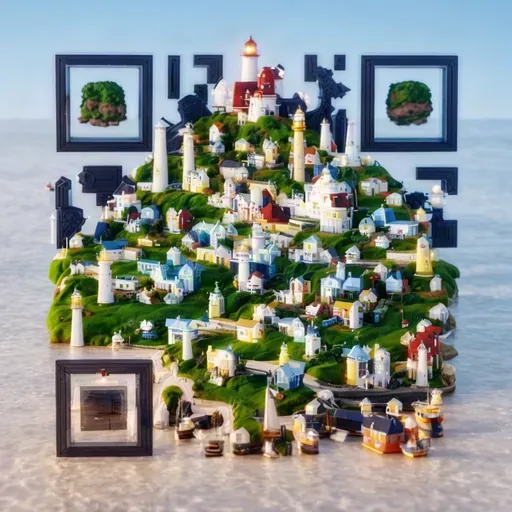
Standard codes are free, so use them for per-attendee badge codes and room door signs, where you're printing hundreds. A logo code (1 credit) with the event mark suits the agenda code, registration banners and sponsor stands, where people want to know a code is official before they scan it. AI art codes (5 credits) suit a stage backdrop or the programme cover, where the code can be part of the event's look.
Common questions
Can we change the agenda code if a session moves?
Yes, you can edit the code's destination in Scandalous, but you rarely need to. Point it at an agenda web page and edit that page, and every badge shows the latest times. Avoid linking straight to a PDF you'll replace.
Can sponsors scan badges to collect leads?
Not through Scandalous. It makes codes; it isn't a lead capture or badge scanning system. If badges carry a vCard code, anyone can scan it with a phone camera and save the attendee as a contact, but nothing is collected or sent to you or the sponsor.
How do we make a contact code for every attendee?
Each vCard code holds the contact details in the pattern itself, so there's nothing to host. Make them one by one in the app, or ask an AI assistant connected to Scandalous over MCP to work through your registration list. Standard codes are free, so a code per badge costs nothing.
Will the Wi-Fi code work if the venue uses a login page?
Wi-Fi codes work for open networks and networks with one shared password. If the venue uses a sign-in page or a username for each person, use a link code to the joining instructions instead.
Can we see how many people scanned the agenda?
Yes. Give the badge and the banner their own link codes, and each one's page in Scandalous shows total scans, unique scanners and scans over time.
your first code is free.
sign up with your email and start making codes. add a logo or ai art whenever you need it.
get in, it's free